How to create an anonymous survey people actually trust
What makes a survey truly anonymous, the settings that quietly break anonymity, and how to create an anonymous employee or customer survey.
The KyraForm team 3 min read
People answer honestly when they believe nobody can trace their answers back to them. That belief is fragile: one “optional” email field, a sign-in screen, or a small team where only one person works night shifts, and the survey stops being anonymous in practice, whatever it says at the top.
Here’s what anonymity really requires, and how to set up a survey that keeps the promise.
What “anonymous” has to mean
A survey is anonymous when nobody, including the person who made it, can tell who gave which answer. That rules out more than a name field:
- Contact details. Email, phone and signature questions identify people directly.
- Sign-in. If people log in to answer, their identity is attached to the response.
- File uploads. Documents often carry names and metadata.
- Payments. A payment always has a payer.
- Technical data. IP addresses and browser details can identify people, especially in a small office.
- Small groups. Asking someone’s team and role can narrow a response down to one person.
Anonymous, pseudonymous or identified
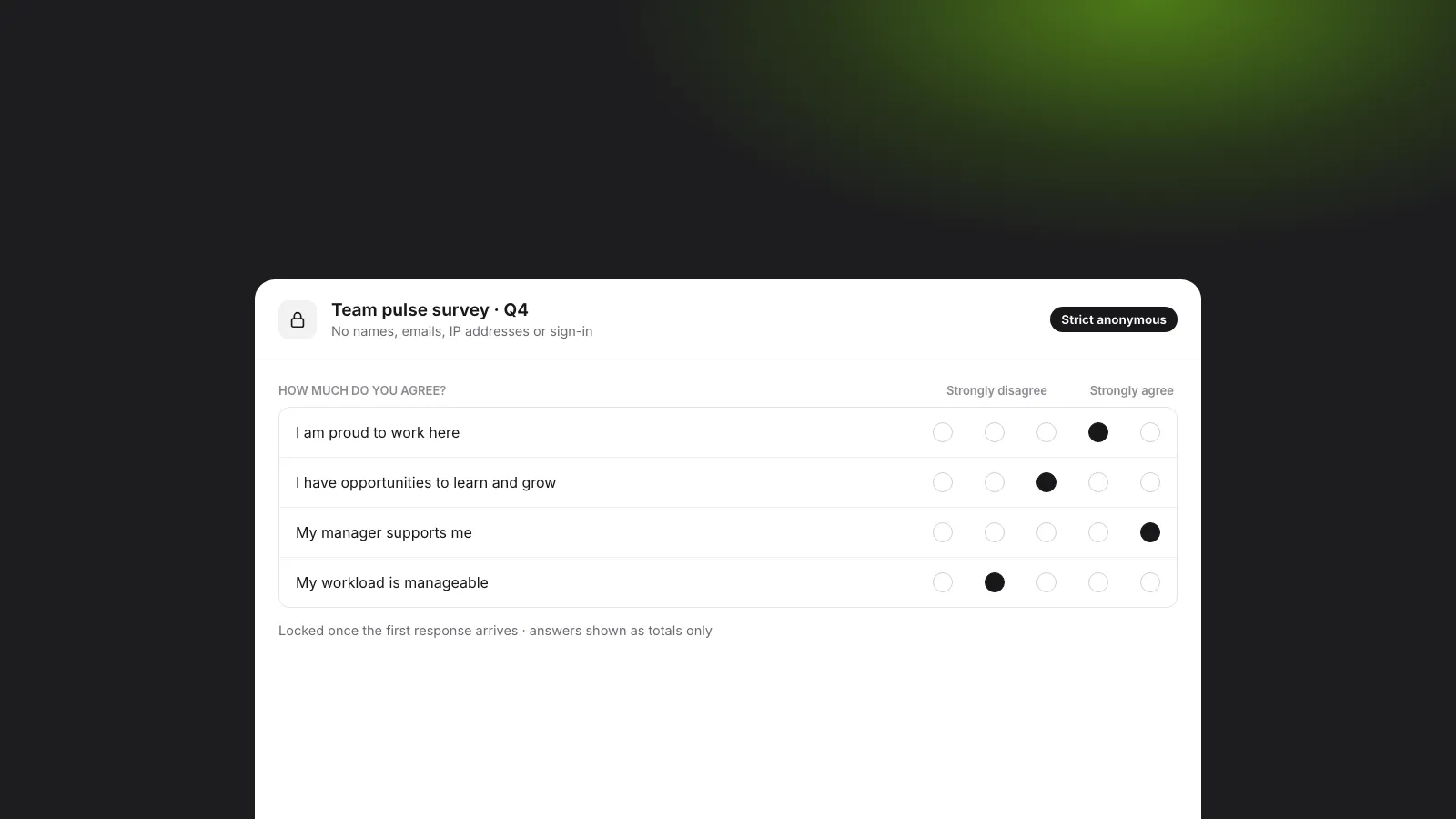
Most survey tools have an “anonymous” checkbox that only hides the name column. KyraForm makes it a choice with clear consequences:
| Mode | Stores |
|---|---|
| Strict anonymous | No direct identity, raw IP address or browser user-agent |
| Pseudonymous | Answers aren’t tied to a named person, but identifying questions and sign-in are allowed |
| Identified | Who answered, like a normal form |
In strict anonymous mode, email, phone, signature and upload questions, sign-in and payments are blocked by the server, not just hidden, so a later edit can’t quietly add them. The mode also locks once the first response arrives: you can’t switch a survey to identified after people have answered on the promise that it was anonymous.
For full anonymity, also set the form’s response privacy to Anonymous in team sharing, so nobody (including you) can open individual responses, only the totals.
Writing anonymous survey questions
- Make demographic questions optional and broad. “Which area do you work in?” with five options is fine; “Which team and role?” in a 30-person company is not.
- Don’t report on tiny groups. A common rule is to leave out any group with fewer than five answers.
- Ask about experiences, not people. “My manager supports me” (agree/disagree) is safer than “Name a manager who…”.
- Keep open questions open-ended but not identifying. “What should we change?” invites honest answers without asking for specifics that give someone away.
Tell people how it’s anonymous
Trust comes from being specific. A line in the description works well:
This survey is anonymous. We don’t collect names, emails or IP addresses, and nobody can see individual answers, only the totals.
Partial answers
People sometimes stop halfway through a sensitive survey. KyraForm keeps incomplete responses separate from completed ones, so you can see where people drop off without counting half-finished answers in your results. The survey report shows starts, incomplete responses and the completion rate.
Start from a template
- Anonymous employee survey: five engagement statements, eNPS and two open questions, already in strict anonymous mode.
- NPS survey: the Net Promoter Score question with two follow-ups, also anonymous by default.
Or build your own with the online survey maker: NPS, CSAT, CES, Likert grids and ranking, with shuffled questions and AI summaries of the comments. The survey settings guide explains each mode in detail.