How to share an online form: link, QR code, embed and WhatsApp
Every way to share an online form, and which one gets the most responses: links, WhatsApp, email, QR codes, website embeds and pre-filled links.
The KyraForm team 4 min read
A form nobody opens collects nothing. The way you share it decides who sees it, how many people finish it, and whether you can tell later which channel worked. Here is every way to share an online form, when each one works best, and how to do it in KyraForm.
1. Share the link
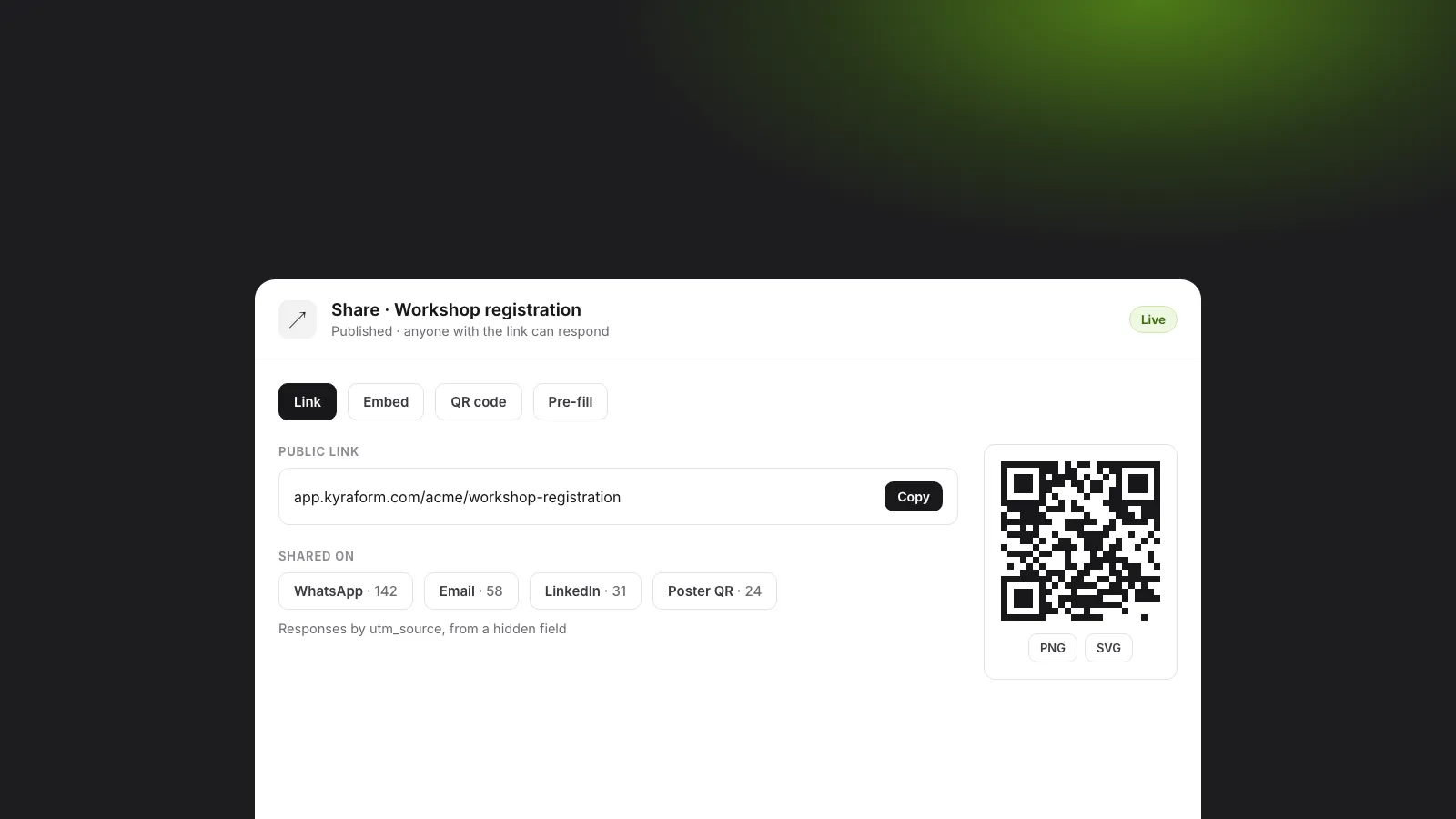
The simplest way: publish the form and copy its link. In KyraForm every published form has a public address like app.kyraform.com/your-org/form-name. Open the form’s ⋯ menu on the Forms page and select Copy link, or use Share for every option below.
A link works anywhere text does: chats, emails, social posts, SMS and your bio. Two tips:
- Say what it is and how long it takes. “Register for Saturday’s workshop (2 minutes)” gets more clicks than a bare URL.
- Give the form a clear address.
…/acme/workshop-registrationis easier to trust than a string of random characters.
2. Share a form on WhatsApp
For many audiences in India, WhatsApp is where a form gets filled. Paste the link into a chat, group or broadcast list, and put one line above it saying who it’s for and the deadline. WhatsApp shows a preview with the form’s title, so name the form for the person reading it, not for your files (“Annual day registration”, not “Form v3 final”).
Forms open on the phone’s browser and work on any screen size. If the form is long, split it into pages so it doesn’t feel like a wall of questions on a small screen.
3. Send it by email
Paste the link in the email body, or use a button if your email tool has one. If you send to a list you already know, a pre-filled link saves people typing (see below). For customer feedback, send it a day or two after the purchase or visit while it’s still fresh.
4. Print a QR code
For posters, flyers, tickets, slides, receipts and the reception desk, use the form’s QR code. KyraForm gives you two downloads:
- PNG for screens, documents and chat.
- SVG for anything printed. It stays sharp at any size, so send that one to the printer.
Print a short call to action next to the code (“Scan to register”) and test it with two different phones before printing a hundred copies.
5. Embed the form on your website
If people already visit your site, put the form there instead of sending them away. KyraForm has six embed types:
| Embed type | What visitors see | Good for |
|---|---|---|
| Inline | The form is part of the page | Contact and sign-up pages |
| Popup | A button that opens the form over the page | “Register now” buttons |
| Slider | The form slides in from the side | Feedback on content pages |
| Popover | A floating button in the corner | Site-wide feedback or support |
| Full page | The form fills the window | Landing pages built for the form |
| Plain iframe | A fixed-height iframe, no script | Site builders that block scripts |
Copy the code from the Embed tab and paste it into your page’s HTML. It works with WordPress, Wix, Webflow, Shopify and plain HTML. One detail: payment pages can’t load inside another website, so if the form takes a payment, checkout opens in a new tab and the person comes back afterwards.
6. Send pre-filled links
A pre-filled link opens the form with some answers already in place: a customer’s order number, an employee’s department, or the event they’re registering for. Fewer fields to type means more people finish.
In KyraForm, open Share → Pre-fill, fill in the answers you want set, and copy the link. Any question with a link parameter can be filled this way, for example …/feedback?order=1042. You can also stop people from changing a value that came from the link.
Know which channel worked
If you share the same form in five places, you’ll want to know which one brought the responses. Add a hidden field that reads utm_source from the link, then share a slightly different link in each place:
…/workshop?utm_source=whatsapp…/workshop?utm_source=linkedin…/workshop?utm_source=poster
Each response records where it came from, and you can filter by it. If you embed the form on your site, turn on Pass the website’s own link parameters to the form so tags on your page reach the form too.
Before you share
- Publish it. A draft form shows “Form not found” to everyone else.
- Test it as a respondent on your phone, including the thank-you screen.
- Set a closing date or a response limit if spaces are limited, so you don’t have to remember to switch it off.
- Keep spam out. Bot protection is on for every public form.
Need a form to share first? Start from one of the free form templates, or describe the form you need and let the AI draft it. Every setting above is in the publish and share guide.