Leave and meeting requests with an approval workflow
Replace leave and meeting requests over email with one form and an approval workflow: who approves, conditions for longer leave, and a free template.
The KyraForm team 3 min read
In most small companies, leave works like this: someone emails their manager, the manager replies “ok”, HR finds out later (or doesn’t), and at year end nobody can say how many days anyone took. Meeting and room requests, travel requests and small purchases go the same way.
A request form with an approval workflow fixes it. Every request has the same details, goes to the right person, and leaves a record of who decided what and when.
What a leave request form should ask
Keep it short. These cover almost every policy:
- Name and work email (or have people sign in, so these are filled in for them).
- Department, so the request can go to the right manager.
- Type of leave: casual, sick, earned or annual, unpaid, other.
- First and last day, and the number of working days.
- Reason, optional for most leave types.
- Handover notes: who covers the work and anything they need to know.
The free leave request form template has all of these ready.
Set up the approval stages
In KyraForm, open Settings → Approvals and turn on review for new responses. Then add stages:
| Stage | Approver | When |
|---|---|---|
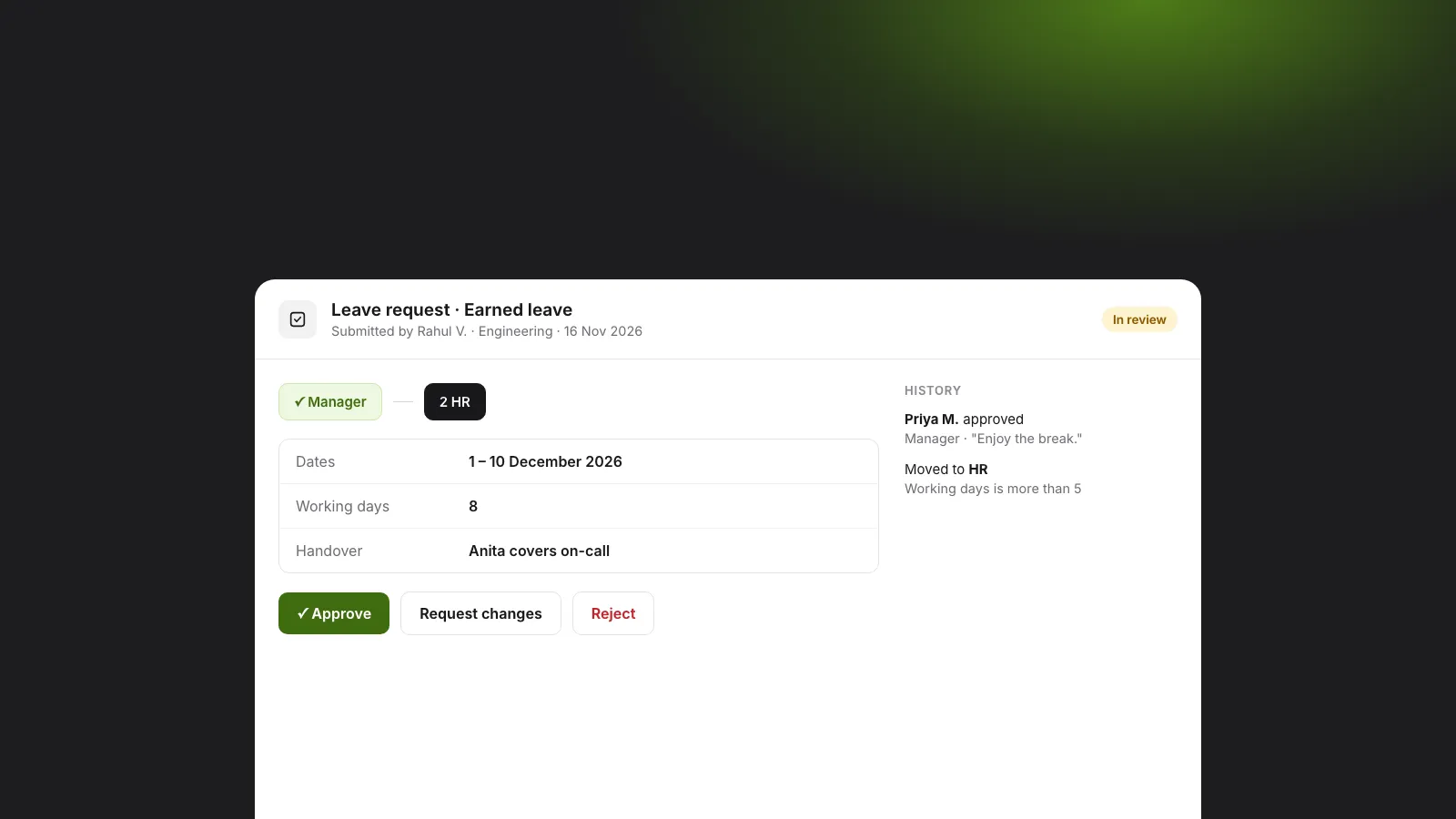
| 1. Manager | The Managers role, or the person’s team lead | Every request |
| 2. HR | The HR team | Only when Number of working days is more than 5 |
Approvers can be specific people, a team or a role. Teams and roles stay current: when someone joins HR, they start receiving HR approvals without anyone editing the form.
Each stage can need one approver (the first decision counts) or every approver. A request is only approved once every stage that applies has said yes, so short leave goes to a manager and is done, while long leave also goes to HR.
What approvers see
Requests waiting for someone appear in their Approvals inbox. They open one, see the answers, and choose Approve, Reject or Request changes with a comment. Turn on Email the respondent and the employee hears when their request is approved, rejected or needs changes; the response keeps its status and the full history of decisions.
Keep a leave register automatically
Connect the form to Google Sheets and every request becomes a row. That sheet is the start of your leave register: filter by person, month or type, or total the days per employee, while the approval status of each request stays in KyraForm. You can also post new requests to a Slack channel so the team knows who’s planning to be away.
The same pattern works for other requests
- Meeting and room requests: date, time, room, attendees, purpose; approved by the office manager.
- Travel requests: destination, dates, estimated cost; a finance stage only above a set amount.
- Purchase requests: item, vendor, amount; manager, then finance, then leadership for large amounts.
- Expense claims: amount, category, receipt upload; manager and accounts.
Each one is a form plus two or three stages, and the conditions keep small requests fast.
Get started
Use the leave request template, add a manager stage, and share the link with your team. Approval workflows are on the Pro plan. For a deeper look at stages, conditions and webhooks, read approval workflows: review responses in stages, or see everything on the form approval workflows page.