Approval workflows: review responses in stages, without the email chain
Route leave requests, purchase orders and applications through one or more reviewers before they count. How to set up multi-stage approvals in KyraForm.
The KyraForm team 4 min read
A lot of forms aren’t finished when someone presses Submit. A leave request needs a manager’s yes. A purchase over a certain amount needs Finance. A grant application goes to a panel. Usually that part happens somewhere else: the response lands in an inbox, gets forwarded, someone replies “approved” in a thread, and three weeks later nobody can say who signed off on what.
Approval workflows move that step into the form. Each response goes through the stages you set, in order, and is only Approved once every stage has said yes.
What a workflow looks like
Take a purchase request form with three stages:
| Stage | Approvers | Needs | Only when… |
|---|---|---|---|
| 1. Manager | The Managers role | one approver | every response |
| 2. Finance | The Finance team | one approver | Amount is greater than 50,000 |
| 3. Leadership | Two named people | every approver | Amount is greater than 5,00,000 |
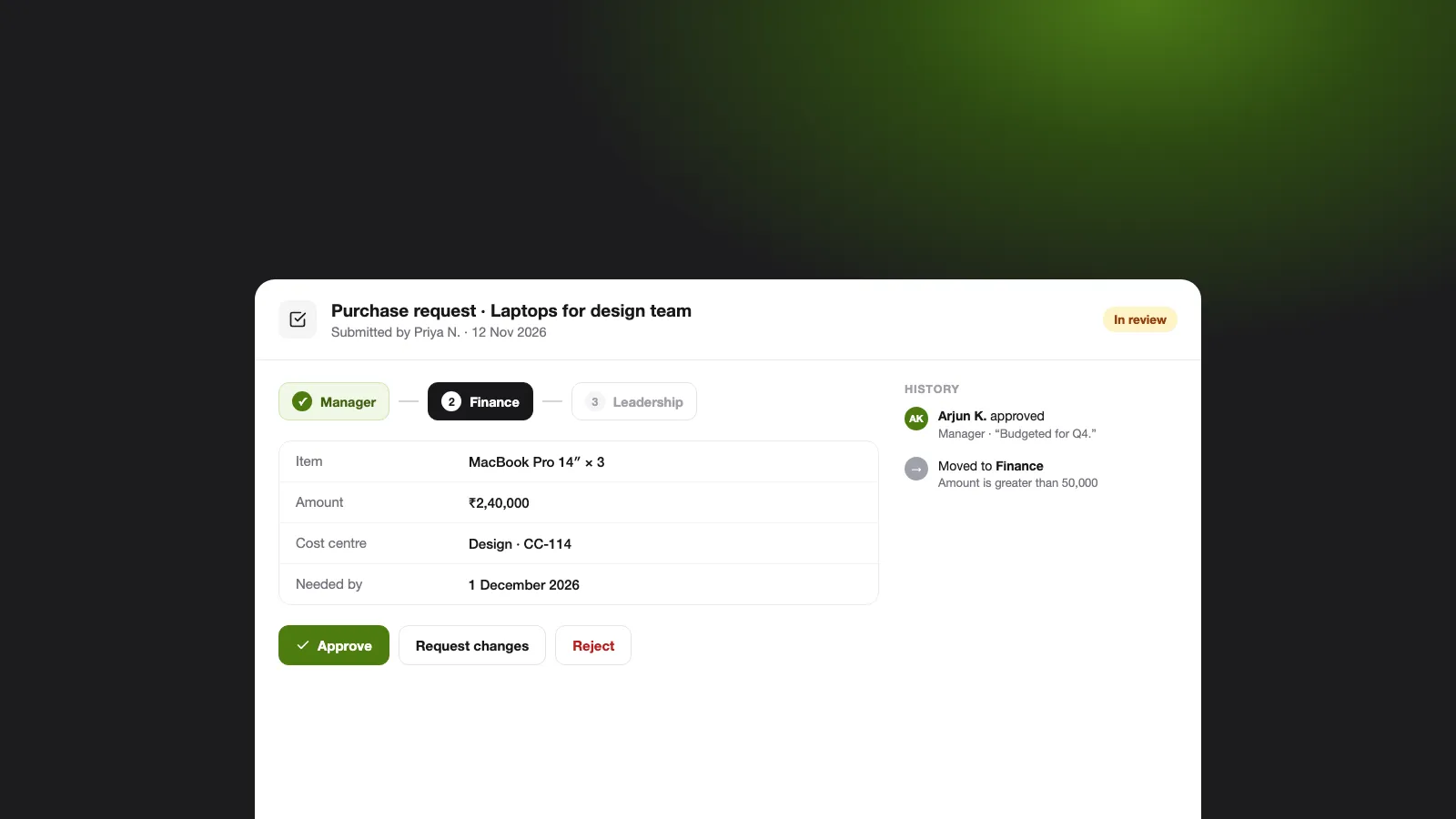
A ₹12,000 request for a monitor goes to a manager and is done. A ₹2,40,000 laptop order goes to a manager, then Finance. Only the big ones reach leadership, and both of them have to agree. One form, and every request takes the shortest path it’s allowed to.
Set it up in four steps
- Open the form, then Settings → Approvals, and turn on Review new responses before they are accepted.
- For the first stage, Add an approver. Pick specific People, a Team or an org Role. Teams and roles stay current: when someone joins Finance, they start receiving Finance approvals.
- Choose whether the stage Needs one approver (the first decision counts) or every approver.
- Add stage for the next level, and repeat. Reorder stages with Move stage up / Move stage down.
Changes apply to new responses. Anything already in review finishes on the stages it started with, so editing a workflow never strands a request halfway.
Only the stages that apply
Only when… uses the same condition builder as the rest of KyraForm’s conditional logic, including ALL/ANY and nested groups. A stage whose conditions don’t match is skipped, so you can write rules like:
- Finance only when Amount is over 50,000
- Legal only when Contract type is New vendor
- HR only when Leave type is Unpaid or Days is greater than 10
Without a condition, every response goes through the stage.
Show each reviewer only what they need
Not every approver should read every answer. Questions approvers see limits what a stage can read. A first-round reviewer of job applications might see experience and portfolio but not expected salary; the hiring manager at stage two sees everything.
Approvers only see responses that are at their stage, and only the questions you allow. People who can already read the form’s responses keep seeing every question.
Reviewing: one inbox, three choices
Approvers open Approvals in the sidebar. It has two lists, Waiting on me and Decided by me, and the Dashboard’s Needs attention shows how many are waiting.
Each response shows the answers, which stage it’s at, and the History of every earlier decision. Then the approver picks one of three:
- Approve moves it to the next stage, or marks it Approved after the last one. If the stage needs every approver, it waits for the rest.
- Request changes sends it back to the respondent with a comment.
- Reject closes it out with a comment.
A comment is required to reject or request changes, so the respondent and the next approver both know why. And two approvers can’t both act on the same response at once: the first decision wins, and the second person sees it’s already moved on.
Keep the respondent in the loop
Under Tell the respondent, KyraForm can email people when their response is approved, rejected or needs changes (the form needs an Email question). No more “any update on my request?” messages.
For everything else, each decision goes out as an approval.* webhook event, so you can update a sheet, post to Slack through Zapier or Make, or kick off a purchase order in your own system the moment something is approved.
Good fits
- Leave and time-off requests: manager, then HR for long or unpaid leave
- Purchase requests: manager, then Finance above a threshold
- Applications and admissions: screening panel, then a final decision
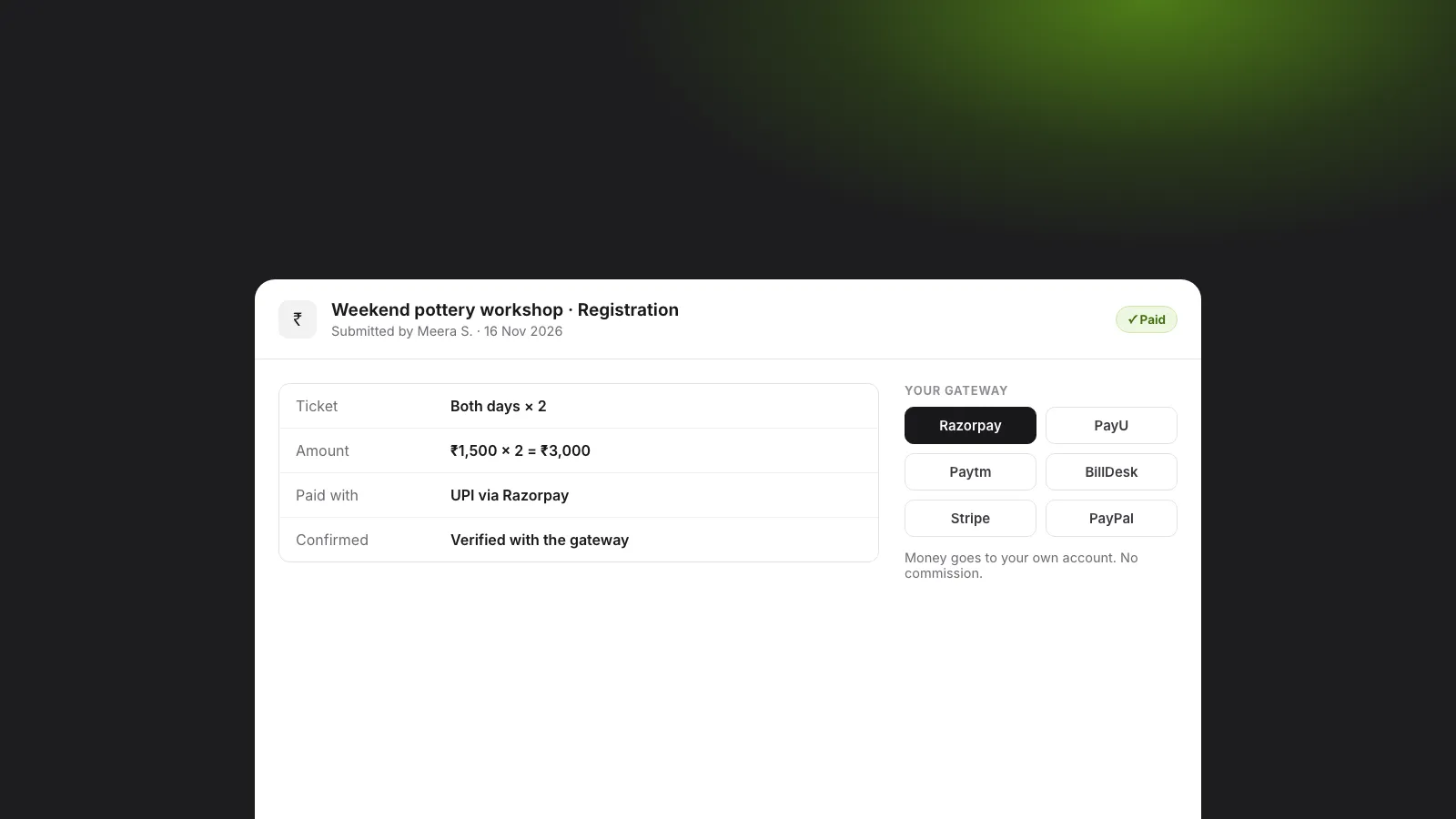
- Event registrations: approve attendees before confirming a place
- Access requests: team lead, then IT
Approvals are on Pro and above. They need someone to read individual responses, so they can’t be used on forms set to Anonymous.
Every setting is in the approval workflows guide in the help center.
Want to start from something ready-made? The leave request form template comes with the questions in place: add a manager stage and it’s ready. For hiring, see job applications with review stages, and for everything approvals can do, form approval workflows.